User Guide
AbsolutSin-ema is an address book that is designed as a desktop app for managing contacts, optimized for use via a Command Line Interface (CLI) while still having the benefits of a Graphical User Interface (GUI). If you can type fast, AbsolutSin-ema can get your contact management tasks done faster than traditional GUI apps.
AbsolutSin-ema is designed for party planners who manage multiple contacts and events:
👥 Target Users:
- Student organizers: Managing dorm parties, graduation events (20-100 guests)
- Corporate event coordinators: Handling company parties, team building events (50-500 attendees)
- Freelance party planners: Organizing weddings, birthdays, celebrations for clients
- Venue managers: Coordinating multiple events with vendors/contacts/people and suppliers
⚡ Perfect for planners who:
- Need to quickly find vendor/contacts during event setup
- Manage budgets across multiple suppliers (catering, DJ, decorations)
- Type faster than they click and prefer keyboard shortcuts
- Handle 20+ contacts per event and want instant access
- Value organized, searchable contact databases over phone scrolling
📝 Note on Terminology:
In AbsolutSin-ema, “vendor”, “contact”, “person”, and “supplier” all refer to the same thing - the people/businesses you work with for events. Whether it’s a DJ, caterer, florist, or guest, they’re all stored as “contacts” in the system.
- When we say “add a vendor” → you use the
addcommand to add a contact - “Assign vendors to party” → you’re assigning contacts to the party
- Your “contact list” contains all your vendors, suppliers, and any other people
Think of it as your universal party planning address book! 📞
🚀 Why CLI for Party Planning?
Speed Where It Matters:
- Find DJ contact in 2 seconds instead of scrolling through phone during setup crisis
- Add 10 vendors in 30 seconds vs minutes of form clicking
- Bulk assign contacts to parties with single commands
Real Scenarios:
- “The caterer is late, I need the backup contact NOW” →
find catering backup⚡ - “Add all these business cards from the vendor fair” → Rapid
addcommands - “Check if we’re over budget for decorations” →
view party_indexshows remaining budget instantly
vs Traditional Apps:
- 📱 Phone contacts: Scroll, scroll, scroll… “Was it under DJ or Music?”
- 🖱️ GUI contact apps: Click New → Fill form → Click Save → Repeat 20 times
- ⌨️ AbsolutSin-ema:
add n/DJ Mike p/91234567 e/mike@music.com b/800→ Done!
Table of Contents
- Quick start
- Features
- FAQ
- Known issues
- Command summary
Quick start
-
Ensure you have Java
17or above installed in your Computer.
Mac users: Ensure you have the precise JDK version prescribed here. -
Download the latest
.jarfile from here. -
Copy the file to the folder you want to use as the home folder for your AbsolutSin-ema.
-
Open a command terminal,
cdinto the folder you put the jar file in, and use thejava -jar absolutsinema.jarcommand to run the application.
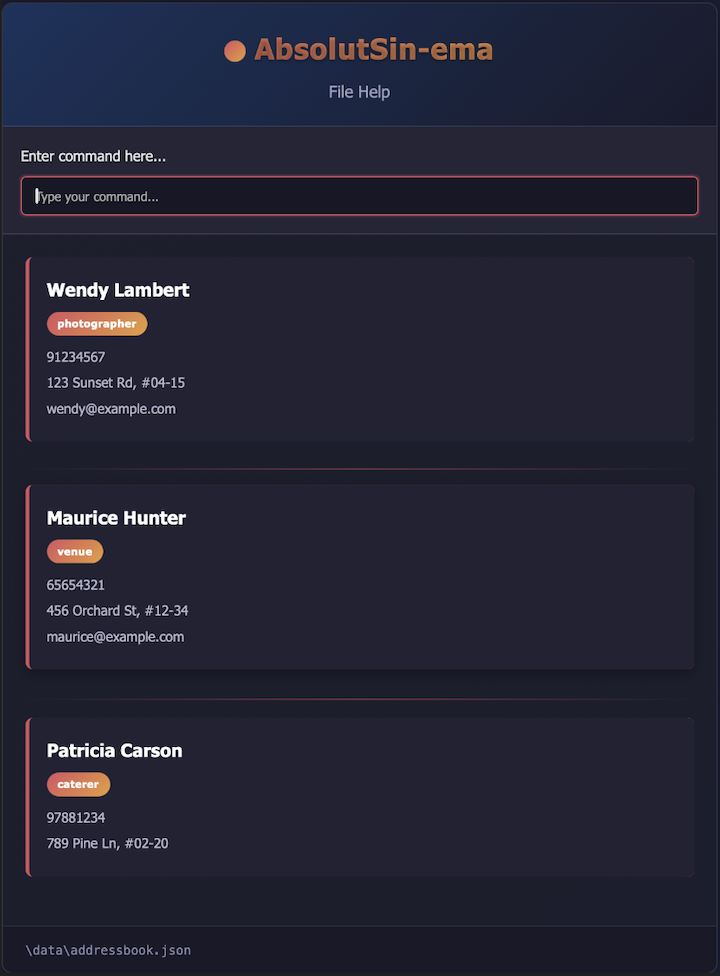
A GUI similar to the below should appear in a few seconds. Note how the app contains some sample data.
-
Type the command in the command box and press Enter to execute it. For example, typing
helpand pressing Enter will open the help window.
🎉 5-Minute Party Planning Tutorial
Let’s plan Sarah’s Birthday Party to see AbsolutSin-ema in action:
Step 1: Add your vendors
add n/DJ Mike p/91234567 e/mike@music.com b/800 t/dj: Add the DJadd n/Bella's Catering p/87654321 e/orders@bella.com b/1200 t/catering: Add catering serviceadd n/Party Supplies Plus p/76543210 e/info@partysupplies.com b/300 t/decorations: Add decorations vendor
Step 2: Create the party
addp n/Sarah's Birthday d/25-12-2024 t/19:00 b/2500 c/1,2,3: Create party and assign all vendors
Step 3: Check your planning
view 1: See who’s assigned and remaining budgetlist: View all your contactsfind dj: Quickly find DJ contacts when needed
Other useful commands:
undo: Undoes the most recent add, delete, edit, or clear commandeditp 1 b/3000: Increase party budget if neededassign 1 c/4: Add more vendors to the partyexit: Exits the app
- Refer to the Features below for details of each command.
Features
ℹ️ Notes about the command format:
-
Words in
UPPER_CASEare the parameters to be supplied by the user.
e.g. inadd n/NAME,NAMEis a parameter which can be used asadd n/John Doe. -
Items in square brackets are optional.
e.gn/NAME [t/TAG]can be used asn/John Doe t/friendor asn/John Doe. -
Items with
… after them can be used multiple times including zero times.
e.g.[t/TAG]…can be used as ` ` (i.e. 0 times),t/friend,t/friend t/familyetc. -
Parameters can be in any order.
e.g. if the command specifiesn/NAME p/PHONE_NUMBER,p/PHONE_NUMBER n/NAMEis also acceptable. -
Extraneous parameters for commands that do not take in parameters (such as
help,list,exit) will be ignored.
e.g. if the command specifieshelp 123, it will be interpreted ashelp. -
If you are using a PDF version of this document, be careful when copying and pasting commands that span multiple lines as space characters surrounding line-breaks may be omitted when copied over to the application.
-
Case sensitivity: Contact names and party names are case-insensitive.
John Doe,john doe, andJOHN DOEare treated as the same name. -
Parameter restrictions: All parameters cannot contain spaces except for names. For example:
- ✅ Valid:
n/John Doe(names can have spaces) - ✅ Valid:
p/91234567,e/john@example.com,w/www.example.com - ❌ Invalid:
p/9123 4567,e/john @example.com,w/www.example .com
- ✅ Valid:
Viewing help: help
Shows a message explaining how to access the help page.

Format: help
Adding a person: add
Adds a person to the AbsolutSin-ema.
Format: add n/NAME p/PHONE_NUMBER e/EMAIL b/BUDGET [w/WEBSITE] [t/TAG]…
Examples:
add n/John Doe p/98765432 e/johnd@example.com w/johndoe.com b/100add n/Betsy Crowe t/friend e/betsycrowe@example.com w/betsycrowe.com p/1234567 b/250 t/photographer
Listing all persons: list
Shows a list of all persons in the AbsolutSin-ema.
Format: list
Editing a person: edit
Edits an existing person in the AbsolutSin-ema.
Format: edit INDEX [n/NAME] [p/PHONE] [e/EMAIL] [w/WEBSITE] [b/BUDGET] [t/TAG]…
- Edits the person at the specified
INDEX. The index refers to the index number shown in the displayed person list. The index must be a positive integer 1, 2, 3, … - At least one of the optional fields must be provided.
- Existing values will be updated to the input values.
- Budget should only contain up to 7 digits with up to 2 decimal places.
- Budget constraint: If editing a contact’s budget would cause the total cost of assignees to exceed the budget of any party the contact is assigned to, an error will be returned and the edit will not proceed.
- When editing tags, the existing tags of the person will be removed i.e. adding of tags is not cumulative.
- By typing
t/without specifying any tags after it, you remove all tags of the contact.
Examples:
edit 1 p/91234567 e/johndoe@example.com w/johndoe.com b/120Edits the phone number, email, website, and budget of the 1st person to be91234567,johndoe@example.com,johndoe.com, and120respectively.edit 2 n/Betsy Crower t/Edits the name of the 2nd person to beBetsy Crowerand clears all existing tags.
Locating persons by name: find
Finds persons whose names contain any of the given keywords.
Format: find KEYWORD [MORE_KEYWORDS]
- Note: Spaces separate different keywords. Each space-separated word is treated as an individual search term.
- The search is case-insensitive. e.g
hanswill matchHans,HANS, orhans - The order of the keywords does not matter. e.g.
Hans Bowill matchBo Hans - Full words are not needed to find a match e.g.
Hanwill matchHans - Persons matching at least one keyword will be returned (i.e.
ORsearch). e.g.Hans Bowill returnHans Gruber,Bo Yang - You can also search by tags in addition to names.
e.g.find friendwill return all persons tagged as “friend”.
Examples:
find JohnreturnsjohnandJohn Doefind alexreturnsAlex Yeohfind friendreturns all persons with the tagfriend.find alex friendreturns all persons whose name includes “Alex” or who have the tag “friend”.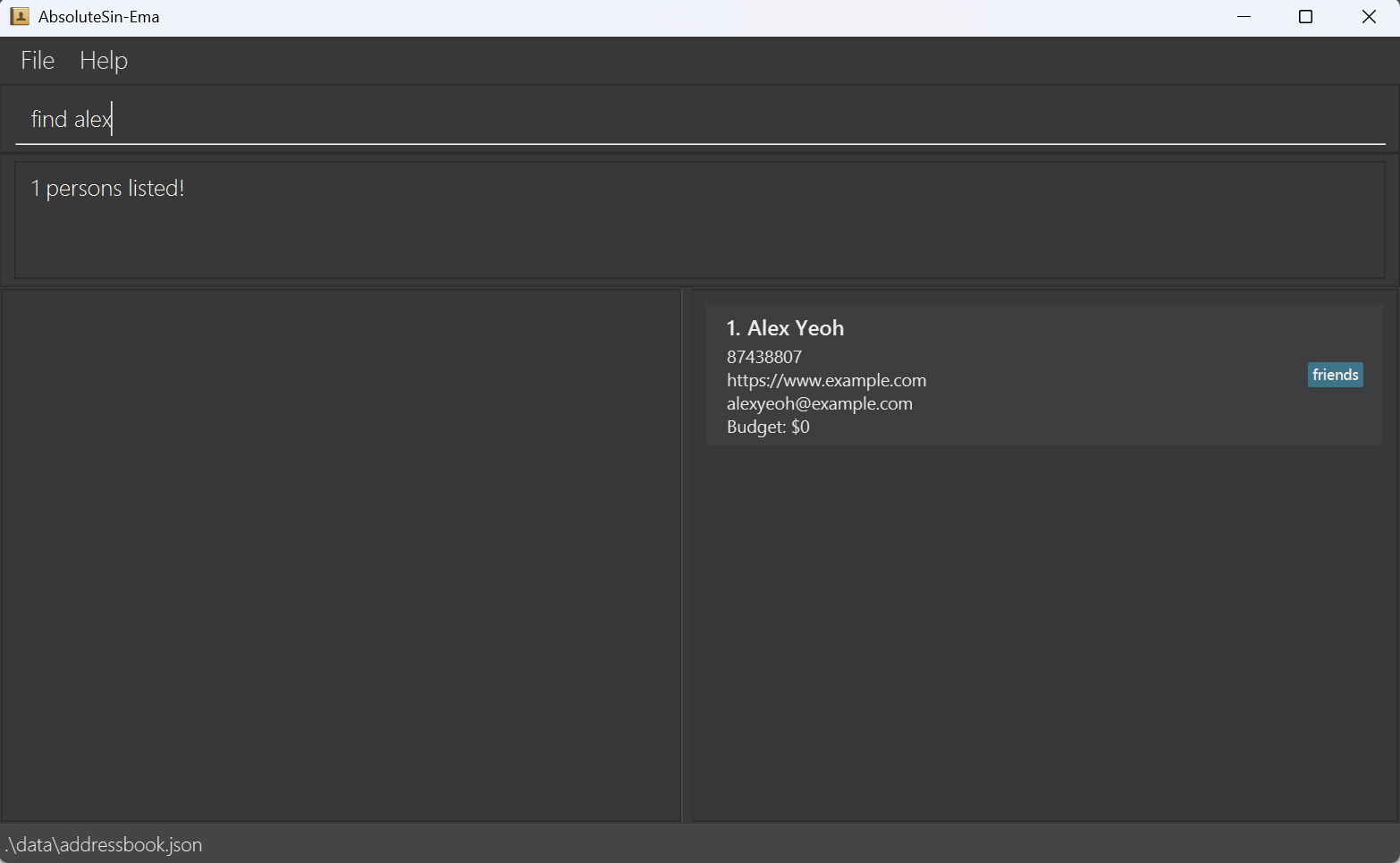
Listing all tags: listtags
Lists all tags currently used in the AbsolutSin-ema.
Format: listtags
- The command displays all unique tags across all persons in alphabetical order.
- If no tags exist in the address book, a message will indicate that no tags were found.
Example:
listtagsdisplays all tags such ascolleague,friend,supplier, etc.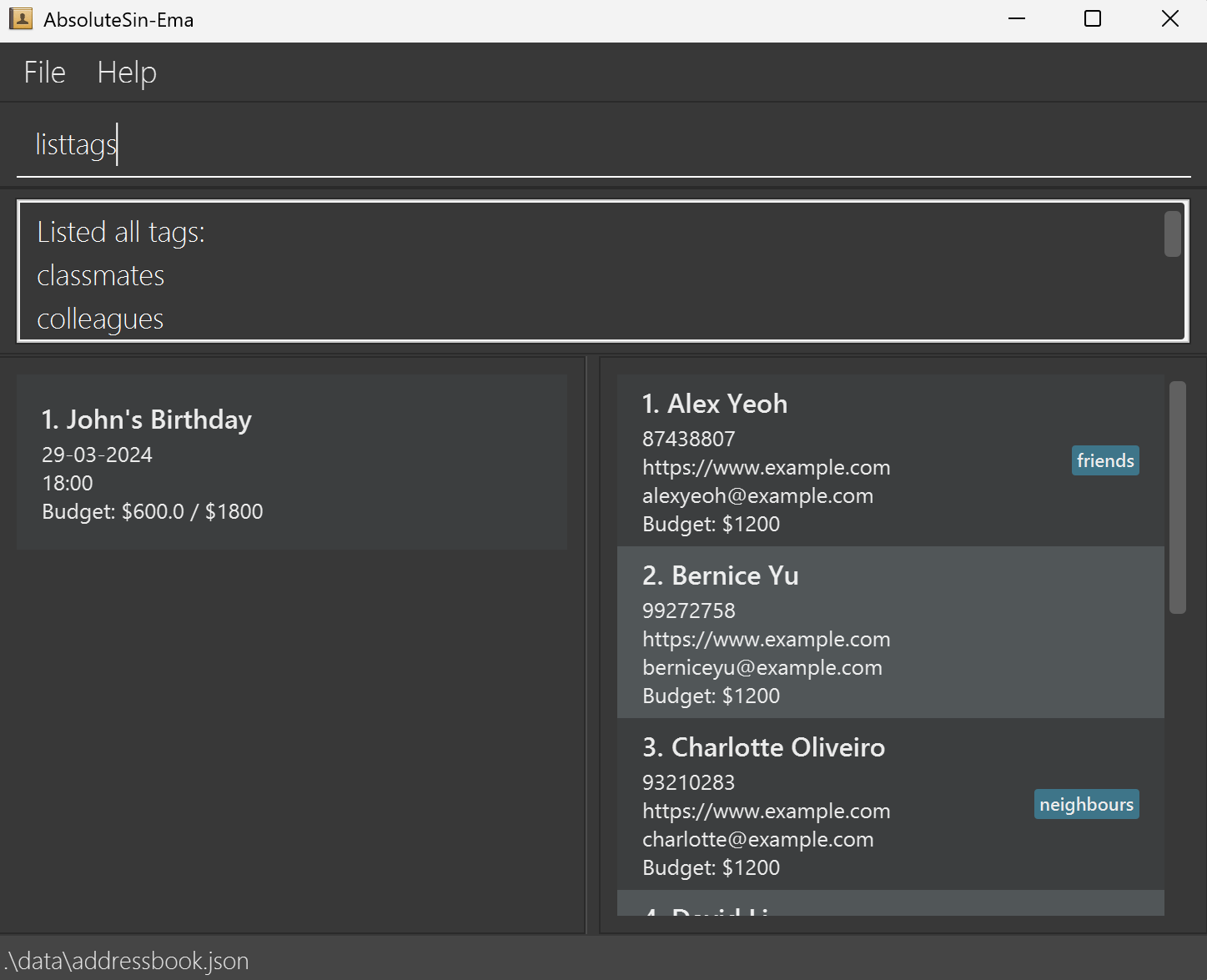
Deleting a person: delete
Deletes the specified person from the AbsolutSin-ema.
Format: delete INDEX
- Deletes the person at the specified
INDEX. - The index refers to the index number shown in the displayed person list.
- The index must be a positive integer 1, 2, 3, …
Examples:
listfollowed bydelete 2deletes the 2nd person in the AbsolutSin-ema.find Betsyfollowed bydelete 1deletes the 1st person in the results of thefindcommand.
Managing parties
AbsolutSin-ema allows you to manage parties (events) and assign contacts to them.
Adding a party: addp
Adds a party to the party list.
Format: addp n/NAME d/DATE t/TIME b/BUDGET [c/CONTACT_INDEX ...]
- You may optionally assign contacts to the party using their indexes.
- Important: A contact cannot be assigned to multiple parties that occur at the same date and time.
- Budget constraint: If assigning contacts would cause the total cost of all assignees to exceed the party’s budget, an error will be returned.
- The date must be in the format
DD-MM-YYYY(e.g.25-12-2024) and cannot be before today. - The time must be in the format
HH:mm(e.g.18:00). - Budget should only contain up to 7 digits with up to 2 decimal places.
Examples:
addp n/John's Birthday d/12-12-2025 t/18:00 b/5000-
addp n/Team Meeting d/01-11-2025 t/14:00 b/2000 c/1,2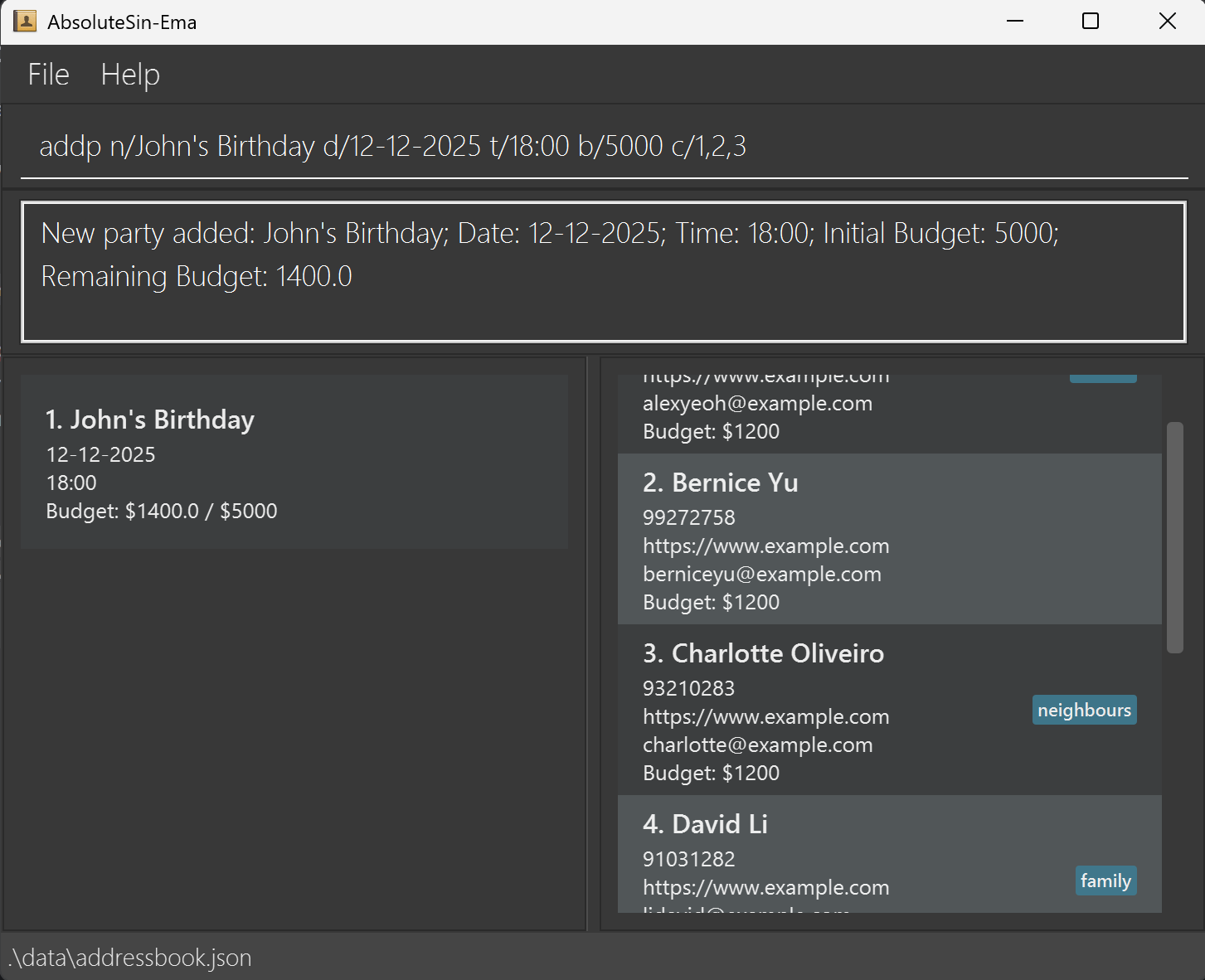
Editing a party: editp
Edits the details of an existing party.
Format: editp INDEX [n/NAME] [d/DATE] [t/TIME] [b/BUDGET]
- Edits the party at the specified
INDEXin the party list. - At least one of the optional fields must be provided.
- Budget should only contain up to 7 digits with up to 2 decimal places.
🚧 If the party has already passed, it cannot be editted, unless it’s date is reassigned to the present/future first.
Examples:
editp 1 d/13-12-2025 t/20:00 b/5100-
editp 2 t/15:00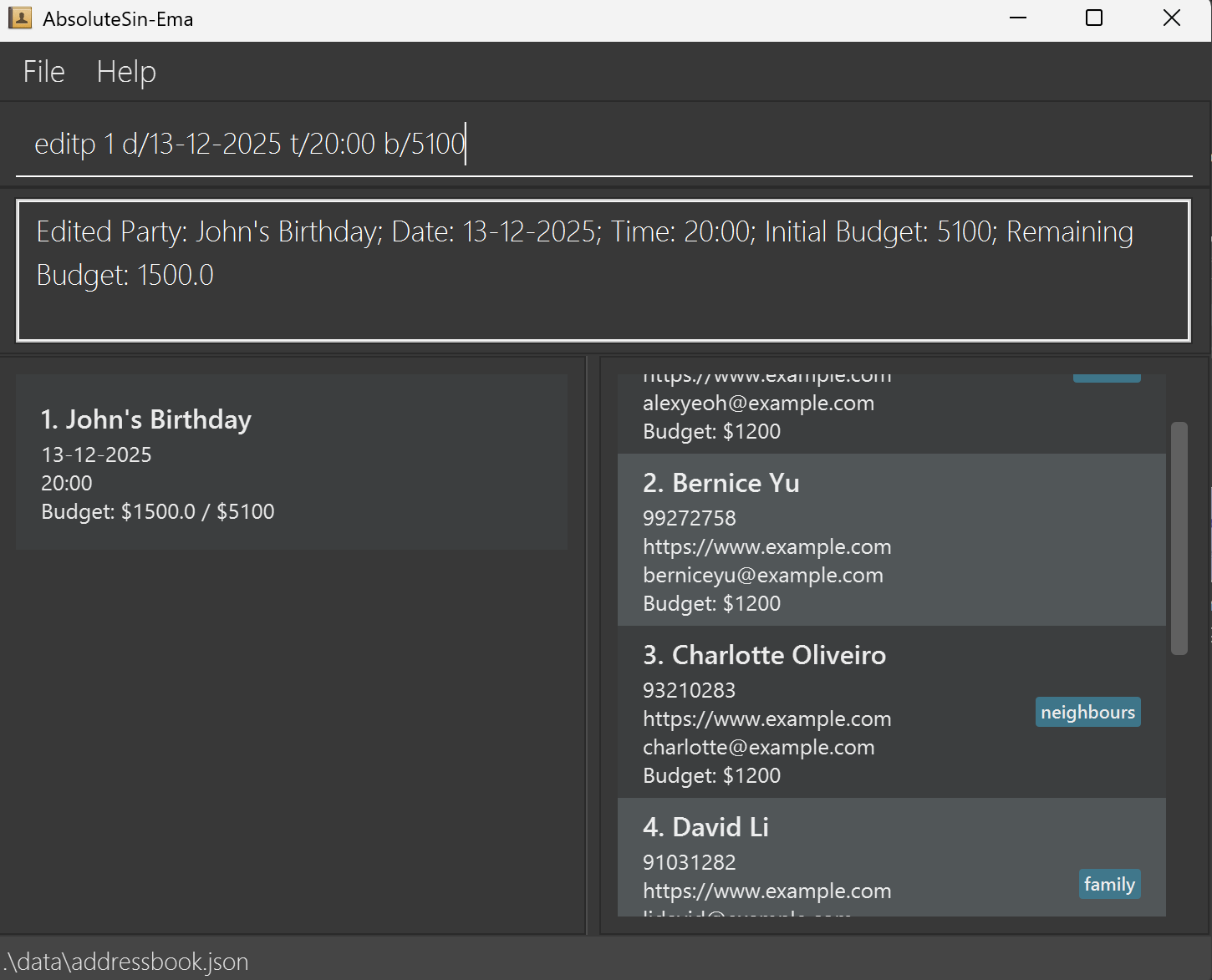
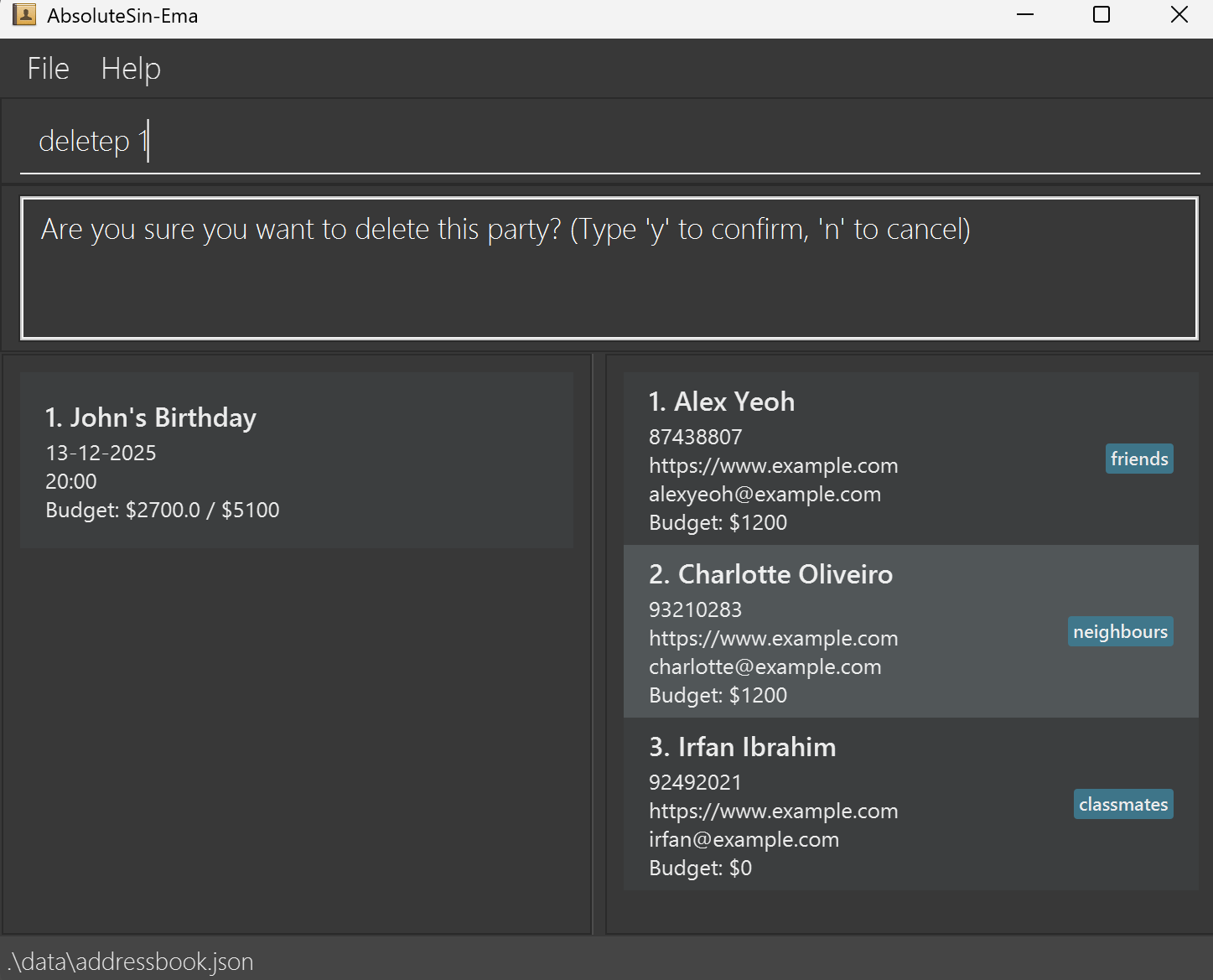
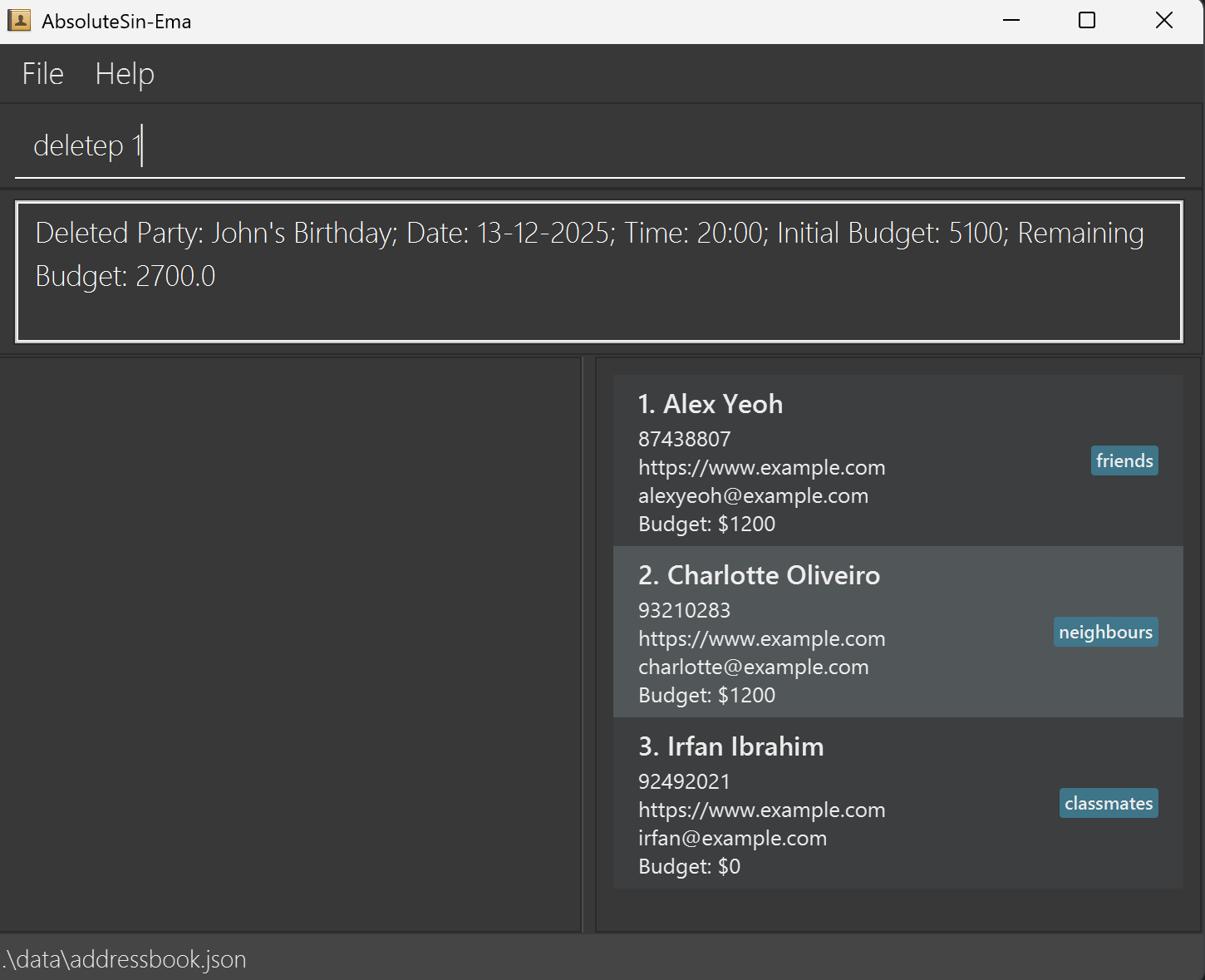
Deleting a party: deletep
Deletes a party from the party list.
Format: deletep INDEX
- Deletes the party at the specified
INDEXin the party list.
Example:
deletep 1
Assigning contacts to a party: assign
Assigns contacts to a specific party.
Format: assign INDEX c/CONTACT_INDEX[,CONTACT_INDEX ...]
- Assigns the specified contacts to the party at the given
INDEX. - With each contact added, the budget of the party will be updated.
- Important: You cannot assign the same person to multiple parties that occur at the same date and time. Each person can only be assigned to one party per time slot.
- Budget constraint: If assigning contacts would cause the total cost of all assignees to exceed the party’s budget, an error will be returned and the assignment will not proceed.
Example:
-
assign 1 c/5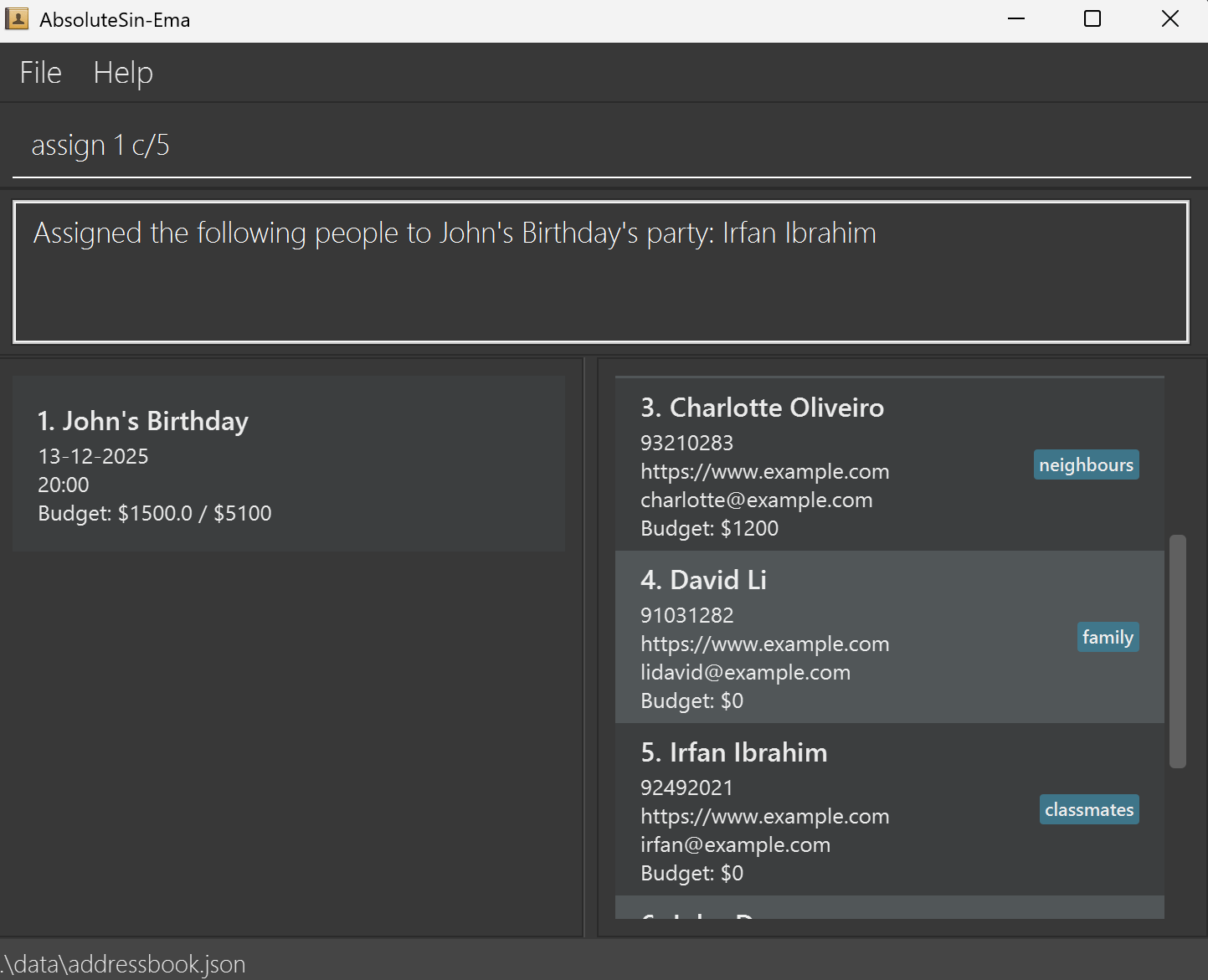
Unassigning contacts from a party: unassign
Unassigns contacts from a specific party.
Format: unassign INDEX c/CONTACT_INDEX[,CONTACT_INDEX ...]
- Unassigns the specified contacts from the party at the given
INDEX.
Example:
-
unassign 1 c/2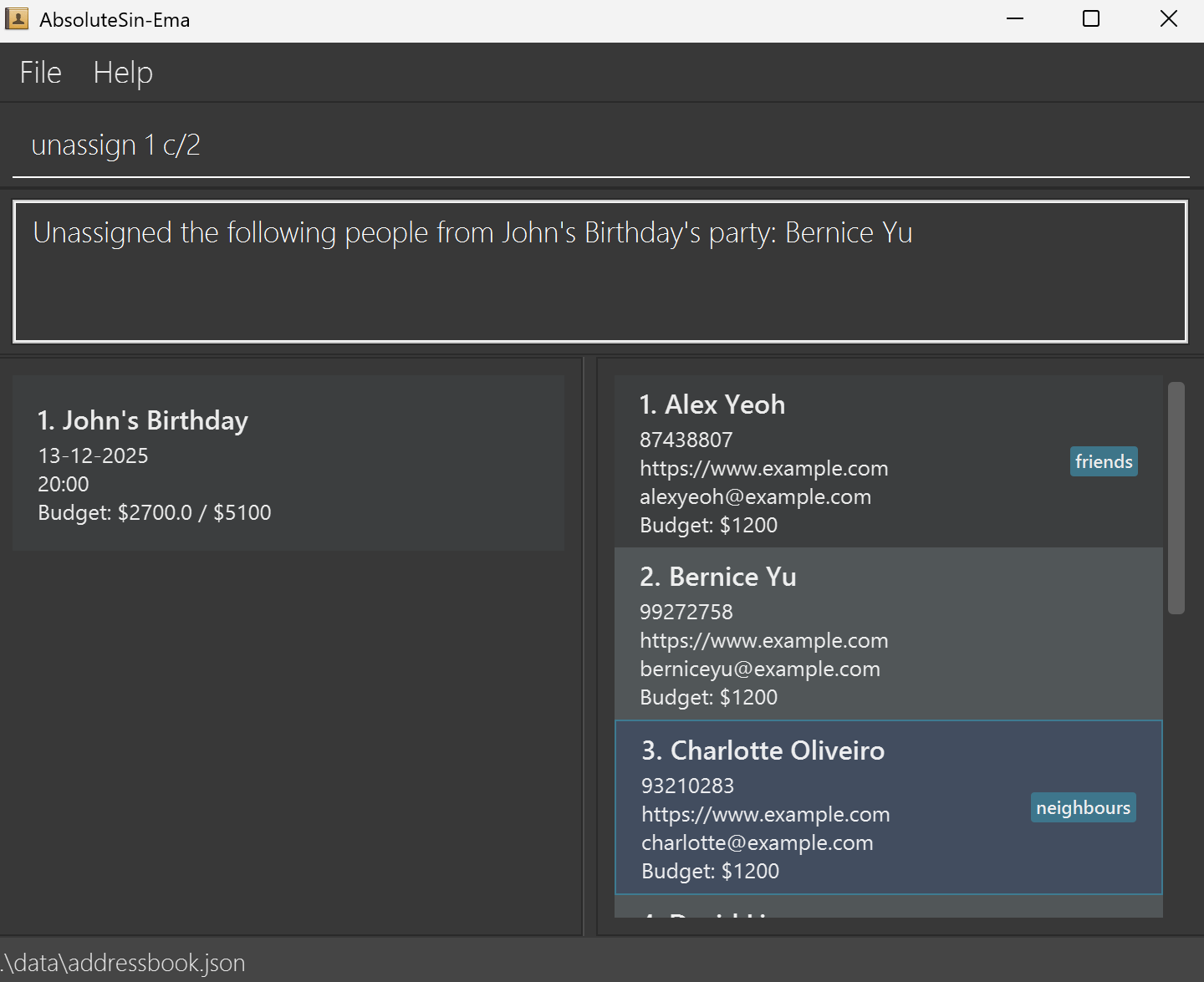
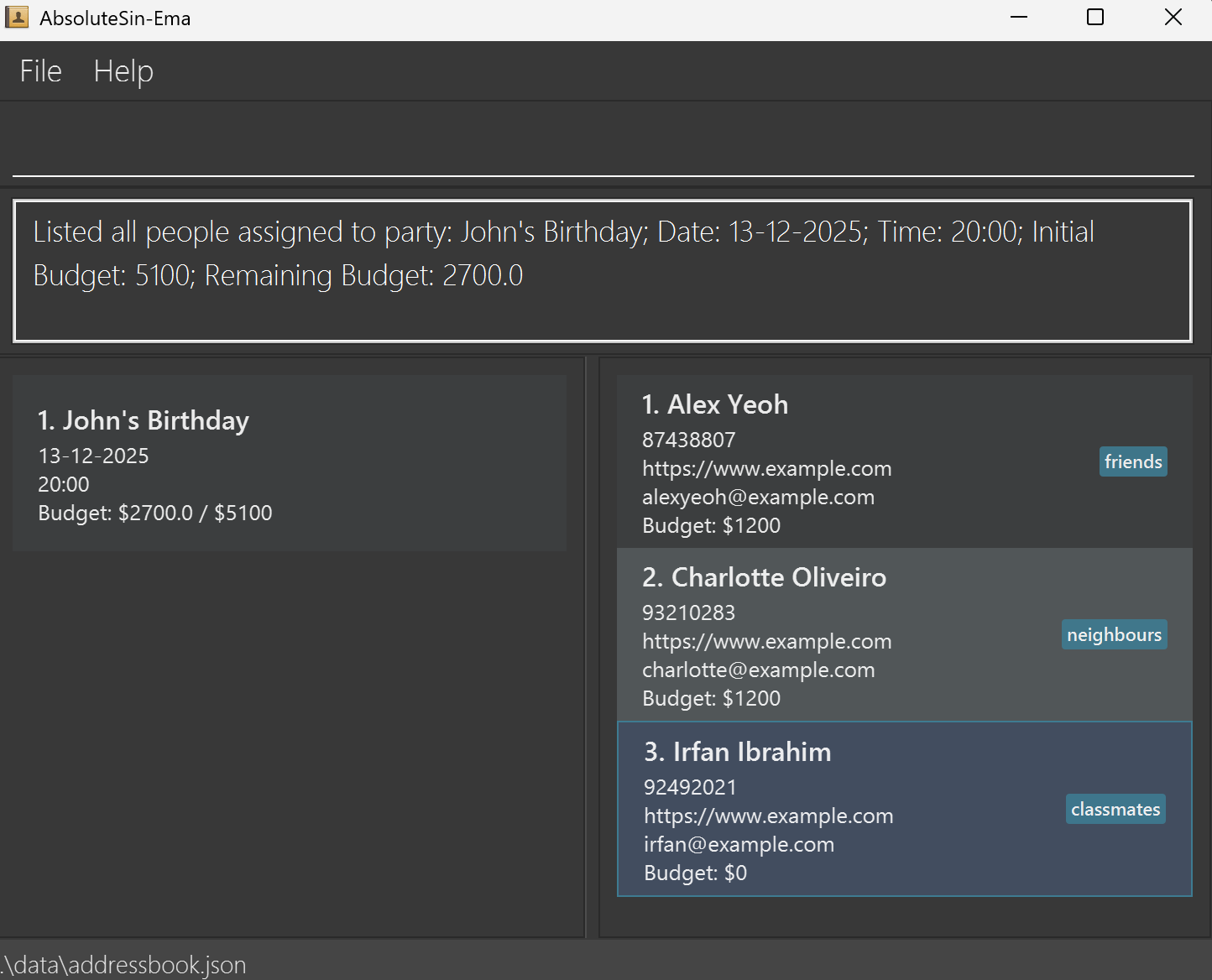
Viewing party participants: view
Shows all contacts assigned to a party.
Format: view INDEX
- Displays all contacts assigned to the party at the specified
INDEX.
Example:
view 1
Clearing all entries: clear
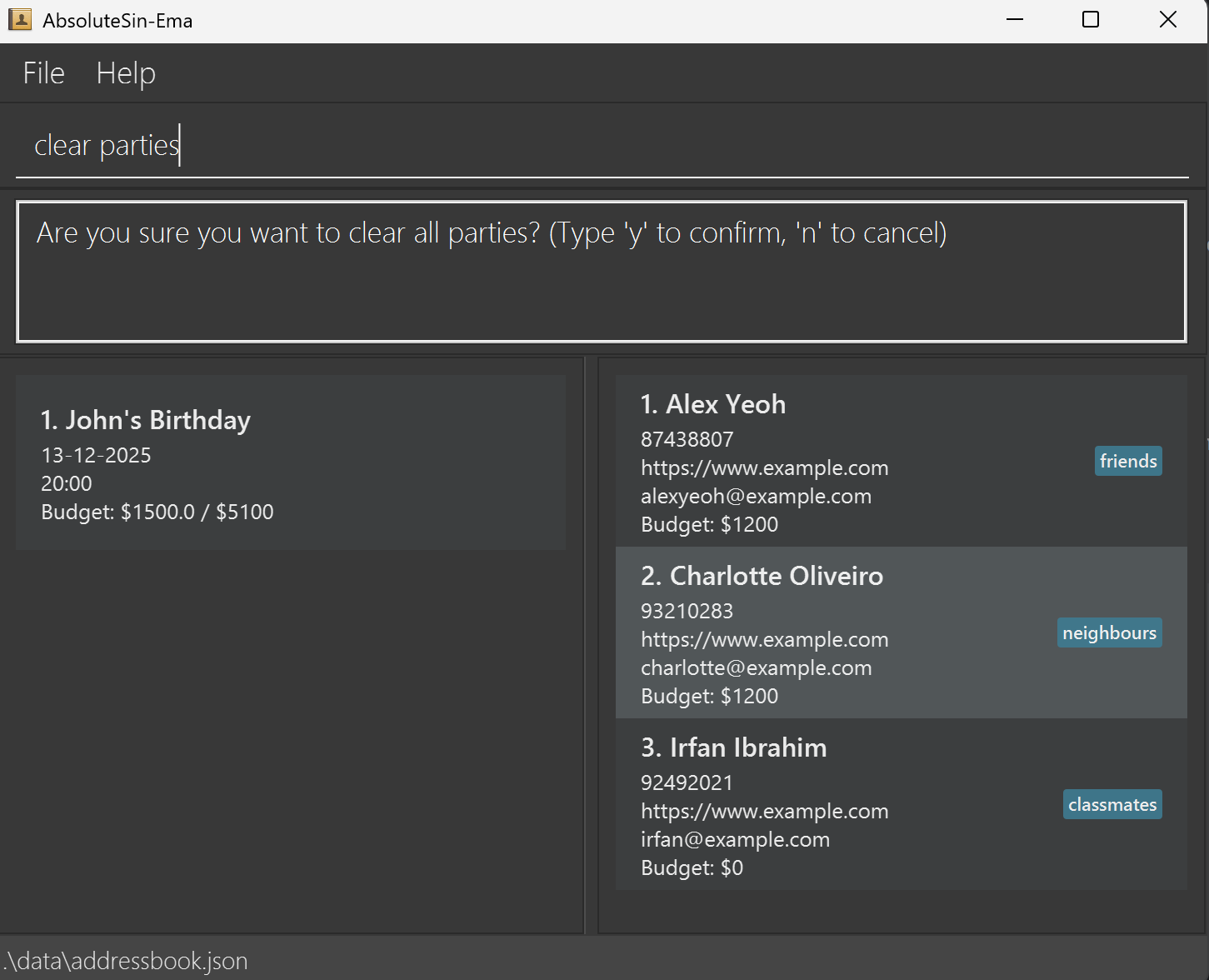
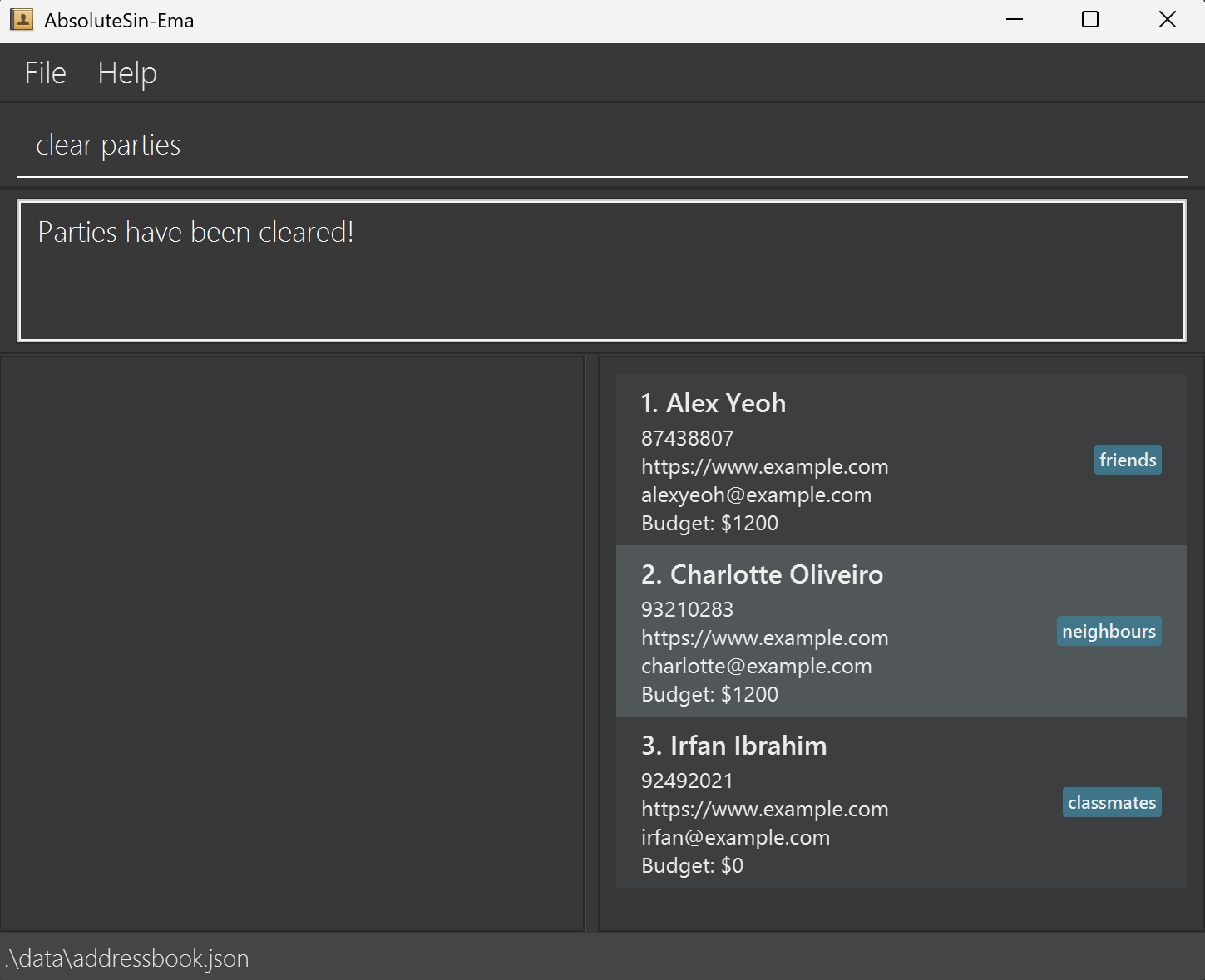
Clears all parties, contacts, or both, from the AbsolutSin-ema.
Format: clear all/parties/contacts
Upon executing the clear command, a confirmation message will appear to prevent accidental data loss. You must confirm the action to proceed.
Warning: This will delete ALL contacts permanently. While this action can be undone, it should still be used with caution.
Undoing the previous command: undo
Undoes the most recent add, delete, edit, clear, or any party-related command. This restores AbsolutSin-ema to the state before the last command was executed.
Format: undo
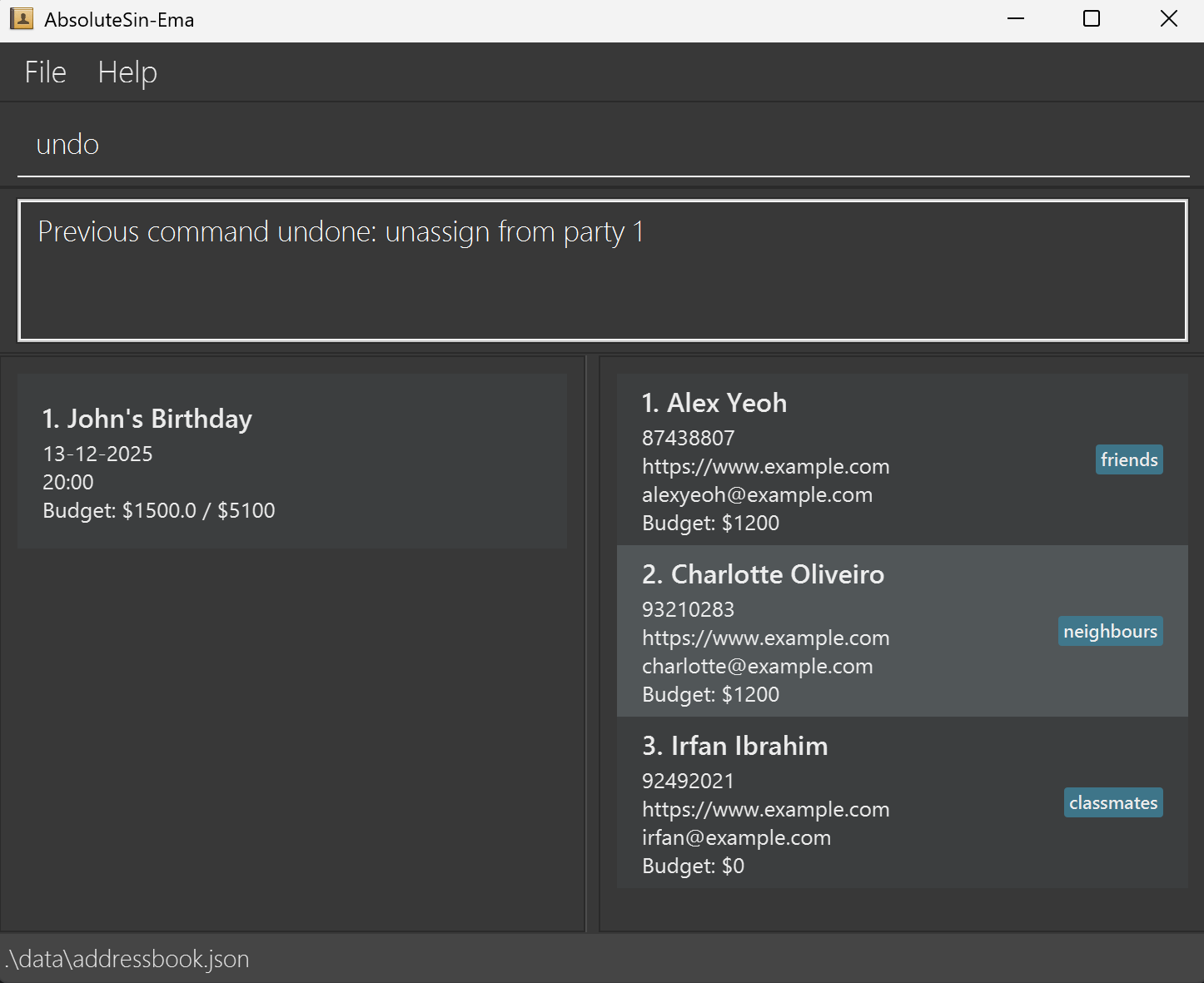
Commands that can be undone:
add- Removes the person that was addeddelete- Restores the person that was deletededit- Restores the person to their previous stateclear- Restores all contacts and/or parties that were clearedaddp- Removes the party that was addededitp- Restores the party to its previous statedeletep- Restores the party that was deletedassign- Reverts the assignment of contacts to a partyunassign- Reverts the removal of contacts from a party
find, list, help, and exit do not modify data and therefore cannot be undone. The undo command will only affect the most recent command that actually changed your contacts or parties.
Examples:
- After running
addp n/John's Birthday d/12-12-2025 t/18:00 b/5000, typingundowill remove the party from your party list. - After running
assign 1 c/2, typingundowill unassign contact 2 from the 1st party. - After running
deletep 2, typingundowill restore the 2nd party back to your party list.
Exiting the program: exit
Exits the program.
Format: exit
Saving the data
AbsolutSin-ema data are saved in the hard disk automatically after any command that changes the data. There is no need to save manually.
Editing the data file
AbsolutSin-ema data are saved automatically as a JSON file [JAR file location]/data/absolutsinema.json. Advanced users are welcome to update data directly by editing that data file.
Edit the data file only if you are confident that you can update it correctly.
FAQ
Q: How do I transfer my data to another computer?
A: Install AbsolutSin-ema on the new computer and overwrite the empty data file it creates with the file that contains the data of your previous AbsolutSin-ema home folder. The data file is located at [JAR file location]/data/absolutsinema.json.
Q: What happens if I accidentally delete a contact?
A: You can use the undo command to restore the deleted contact immediately after the deletion. If you have performed other commands after the deletion, you will need to add the contact again manually.
Q: Why can’t I find a contact even though I know they exist?
A: The find command only searches by name and requires exact word matches. Make sure you’re typing the exact words that appear in the contact’s name. Use list to see all contacts if needed.
Q: Can I have two contacts with the same name?
A: No, AbsolutSin-ema does not allow duplicate names. Each contact must have a unique name. If you try to add a contact with an existing name, you will get an error message.
Q: What happens if I use clear contacts or clear parties?
A: clear contacts will remove all contacts but keep your parties intact. Any parties that previously had assigned contacts will now show no participants.
clear parties will remove all parties while keeping your contacts untouched. Use clear all to remove both.
Q: Can I undo a clear all/contacts/parties command?
A: Yes. If you accidentally clear data, you can immediately type undo to restore everything to its previous state. Only one level of undo is supported.
Q: Will clearing parties also delete the contacts assigned to them?
A: No. Clearing parties only removes the party entries. The contacts themselves will remain in the contact list.
Q: Can I assign the same contact to multiple parties?
A: Yes. A contact can belong to multiple parties at once. Each party tracks its own list of assigned contacts independently.
Q: What if I unassign a contact who is not part of that party?
A: The command will show an error message. Only contacts currently assigned to that specific party can be unassigned.
Q: What happens if I use undo multiple times?
A: AbsolutSin-ema currently supports only one level of undo. Running undo again after restoring data will not revert earlier actions.
Q: How can I verify that a contact was successfully assigned to a party?
A: After using the assign command, run view INDEX (where INDEX refers to the party) to see the list of assigned contacts.
Q: What should I do if the application won’t start?
A: Ensure you have Java 17 or above installed. Check that the jar file is not corrupted by re-downloading it. Make sure you’re running the command java -jar absolutsin-ema.jar from the correct directory. See the Troubleshooting section for more detailed steps.
Q: Can I backup my data?
A: Yes, simply copy the absolutsinema.json file from the data folder to a safe location. You can restore it later by copying it back. It’s recommended to backup your data regularly.
Q: Are my contacts searchable by phone number or email?
A: Currently, the find command only searches by name and tag. To find contacts by other fields, use the list command to view all contacts and manually search through them.
Q: What characters are allowed in names and addresses?
A: Names can contain letters, numbers, and spaces. Addresses can contain any characters including special symbols, making them flexible for international addresses.
Known issues
- When using multiple screens, if you move the application to a secondary screen, and later switch to using only the primary screen, the GUI will open off-screen. The remedy is to delete the
preferences.jsonfile created by the application before running the application again.
Command summary
| Action | Format, Examples |
|---|---|
| Add | add n/NAME p/PHONE_NUMBER e/EMAIL [w/WEBSITE] b/BUDGET [t/TAG]… e.g., add n/DJ Alex p/91234567 e/alex@mixmaster.com w/djalexit.com b/800 t/dj t/music |
| Add Party | addp n/NAME d/DATE t/TIME b/BUDGET [c/CONTACT_INDEX...] e.g., addp n/Corporate Gala d/15-03-2025 t/19:30 b/15000 c/1,2,3 |
| Clear | clear all/parties/contacts |
| Delete | delete INDEXe.g., delete 3 |
| Delete Party | deletep INDEX e.g., deletep 2 |
| Edit | edit INDEX [n/NAME] [p/PHONE_NUMBER] [e/EMAIL] [w/WEBSITE] [t/TAG]... [b/BUDGET]e.g., edit 2 n/Premium Catering Co e/bookings@premiumcatering.com b/1500 |
| Edit Party | editp INDEX [n/NAME] [d/DATE] [t/TIME] [b/BUDGET] e.g., editp 1 n/Annual Company Party d/20-12-2025 t/18:30 b/25000 |
| Exit | exit |
| Assign to Party | assign PARTY_INDEX c/CONTACT_INDEX... e.g., assign 1 c/1,2,3 |
| Unassign from Party | unassign PARTY_INDEX c/CONTACT_INDEX... e.g., unassign 1 c/2,3 |
| Find | find KEYWORD [MORE_KEYWORDS]e.g., find catering, find DJ photographer |
| List | list |
| List Tags | listtags |
| Undo | undo |
| View Party | view INDEX e.g., view 1 |
| Help | help |